
GPT Image 2.6 Image Generator
Use Flare or Sunburst to turn a description and reference images into a new image. Set the composition, resolution and output format to suit your project.

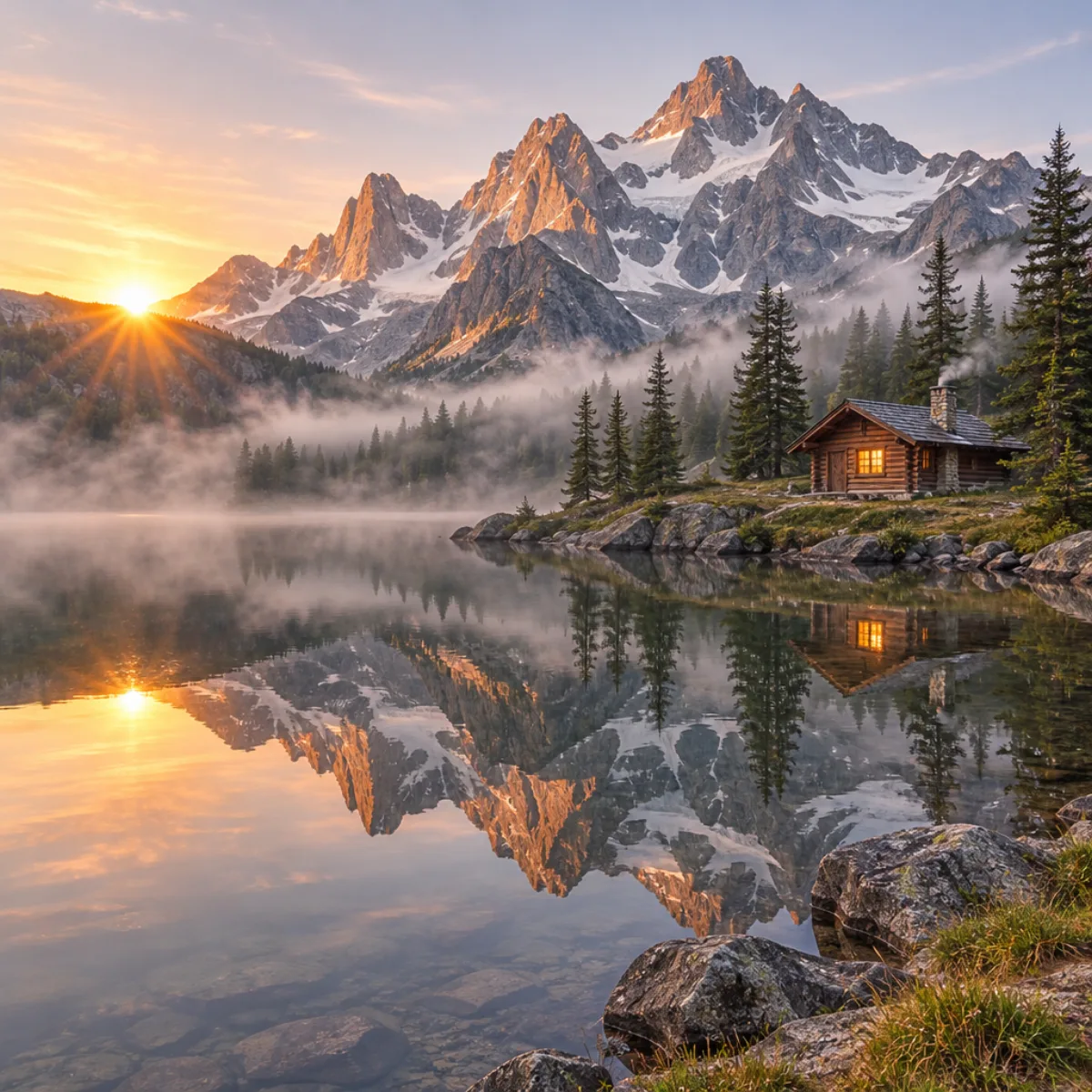
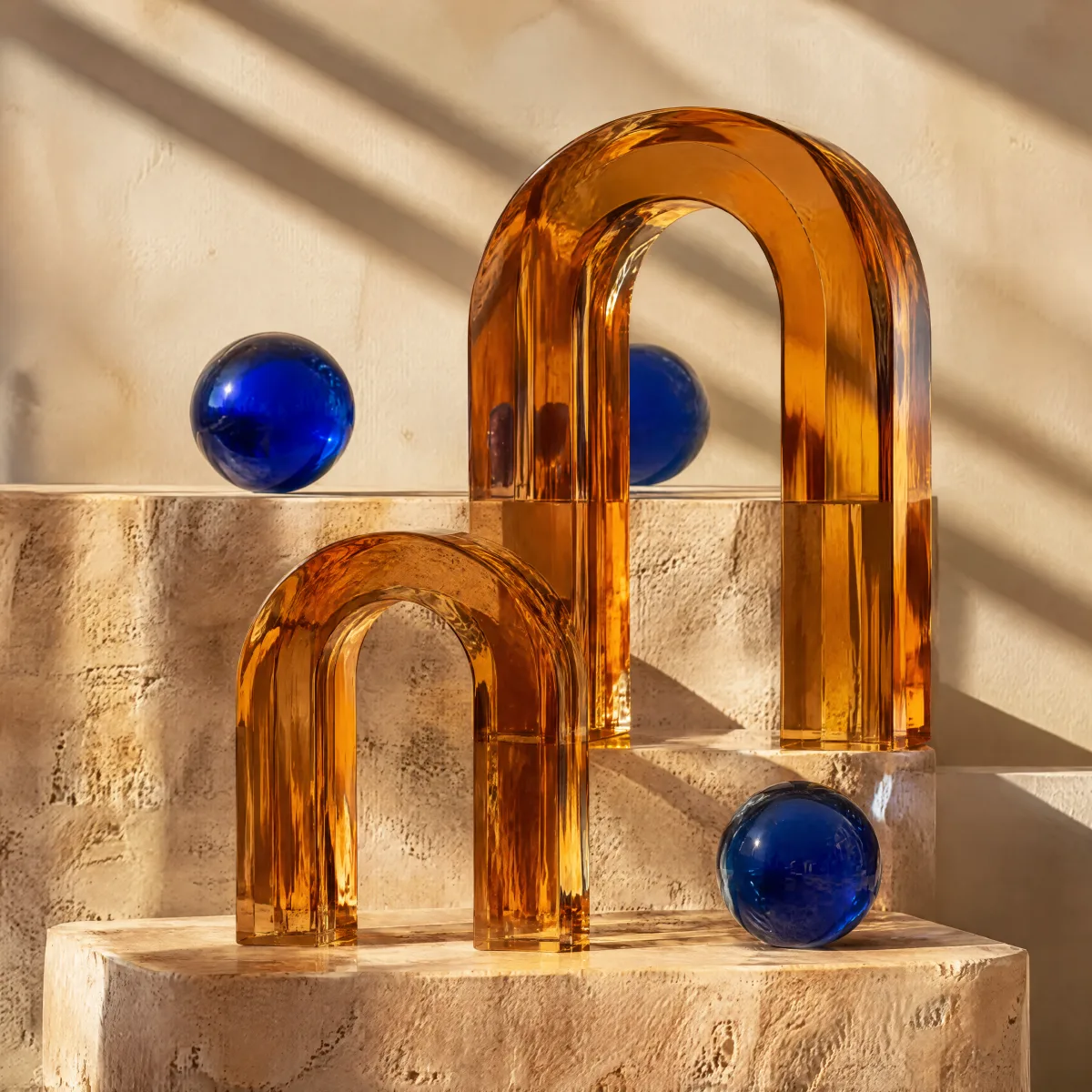
GPT Image 2.6 Flare
Prioritize generation speed
Explore image ideas with a focus on speed. Try different subjects, styles and compositions as you refine your direction.
GPT Image 2.6 Sunburst
Prioritize detail and editing consistency
Focus on details and consistent edits when refining an image. Use reference images and clear instructions to guide your changes.
Review the credit estimate in the studio before generating. The estimate reflects your selected settings.
Create an image in three steps
Choose a model, describe your image, then configure and generate.
Choose your model
Select GPT Image 2.6 Flare or Sunburst. You can compare results using the same prompt and settings.
Write a GPT Image 2.6 prompt
Describe the subject, composition, lighting and style. Add reference images when you want to guide the result, and explain which details should stay the same.
Set up and generate
Choose a ratio, resolution and format, check the credit estimate, then generate and download your image.
Configure GPT Image 2.6 for your project
Use the same set of controls to explore Flare and Sunburst.
Two models to compare
Use a consistent prompt and settings with Flare and Sunburst, then compare the actual images to choose your result.
1K, 2K and 4K resolution
Choose the output resolution for your project and review its credit estimate before generating.
15 aspect ratios
Choose a square, portrait or landscape composition to fit a product image, poster or cover. Match the frame to where the image will appear.
Create with reference images
Combine your written instructions with reference images to guide subjects, composition and visual style.
PNG, JPEG and WebP
Choose an output format that fits the way you plan to use and share the image.
Transparent backgrounds
Choose PNG or WebP when you need a transparent background for layouts and layered designs.
GPT Image 2.6 questions
Which model should I choose?
Flare prioritizes generation speed, while Sunburst prioritizes detail and editing consistency. Both use the same settings on this page, so compare them with the same prompt and configuration to choose for your project.
Which resolutions and aspect ratios can I choose?
GPT Image 2.6 offers 1K, 2K and 4K resolution and 15 aspect ratios. Choose the combination that fits your intended composition and review the credit estimate.
Can I use reference images?
Yes. You can add up to 16 reference images and describe the subjects, layout or style you want the model to follow.
Which formats support a transparent background?
Output formats include PNG, JPEG and WebP. Choose PNG or WebP for a transparent background.
How many credits will generation use?
Use the credit estimate displayed in the studio for your selected settings. Review it before submitting the generation request.
How can I compare the two models?
Choose Flare or Sunburst in the studio and keep the same prompt, reference images and settings. Compare the generated images for your intended use, including their composition, details and response to editing instructions.